
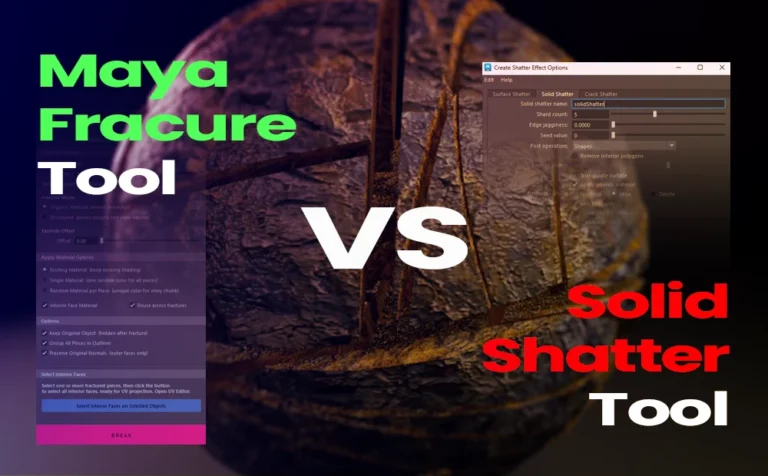
Let’s explore an in-depth comparison between the Fracture Tool and the Solid Shatter tool in Maya.
Before diving into the comparison, I want to clarify that Solid Shatter (the built-in tool in Maya) is still a good and valid option for fracturing objects. However, it has a few limitations that I wanted to address, this is why I created the Maya Fracture Tool.
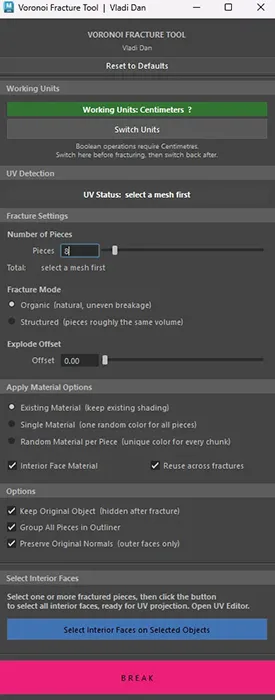
This is the UI for the Maya fracture tool:
Facture or Re-Fracture Objects in a Maya Scene:
With the Solid Shatter tool, you can’t easily fracture one mesh and then fracture another, or re-fracture an already fractured object, without additional steps. Specifically, you need to assign a new material to the mesh before applying another fracture.
With the Maya fracture tool, this limitation doesn’t exist. You can fracture multiple objects or re-fracture the same object as many times as you want without applying a new material. This makes the workflow much faster and more intuitive.
Shared Inner Generated Material:
Every time you fracture a mesh using Solid Shatter, it generates and assigns a new material to the inner faces. This is fine when working with different objects, but when re-fracturing the same object, you often want the inner faces to keep the same material as before. Solid Shatter does not support this.
The Maya fracture tool does. It includes a “Reuse Across Fracture” option. When enabled, the tool automatically assigns the first generated inner material to all subsequent fractures or re-fractures in the scene.
Note: You can toggle this option on/off depending on your needs.
Selecting Inner Faces:
With Solid Shatter, you can select all inner faces in object mode by going to Hypershade, selecting the inner material, and choosing “Select Objects with Material.” However, you cannot select inner faces for individual pieces.
With the Maya fracture tool, you can select either all inner faces or only those from specific pieces. This provides much greater flexibility.
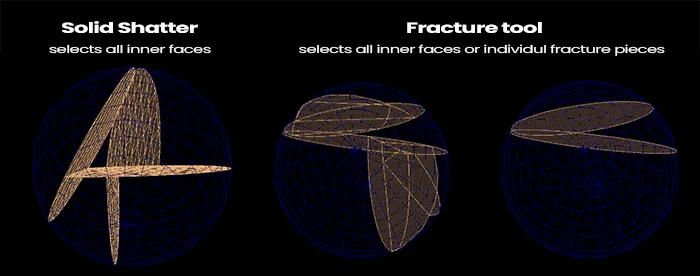
Note: Manually selecting inner faces can be very time-consuming, especially on complex meshes.
Support Multi-Material Objects:
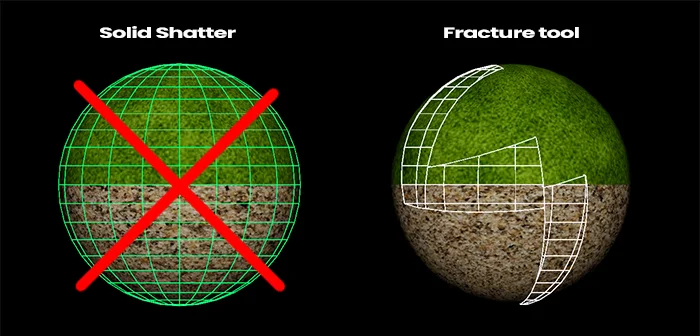
The Solid Shatter tool does not support multi-material objects and will return an error if you try.
The Maya fracture tool fully supports multi-material meshes. Whether your object has two or more materials assigned, it will work without issues. This is a major advantage and a key limitation of Solid Shatter.
Material-Friendly:
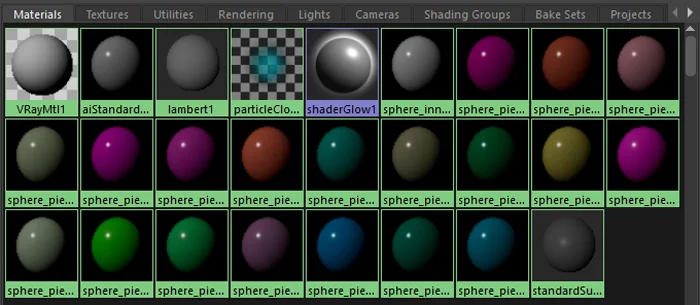
Although Solid Shatter works with various renderers and materials, it always generates a Lambert material for the inner faces.
The Maya Fracture Tool generates inner materials that match the type already assigned to your mesh. For example, if your object uses an aiStandardSurface (Arnold) material, the inner material will also be aiStandardSurface.
Tip: When using Single or Random material options, you can control the output by first assigning a specific material (e.g., VRayMtl, aiStandardSurface, etc), ensuring all generated materials match.
Polycount Matters:
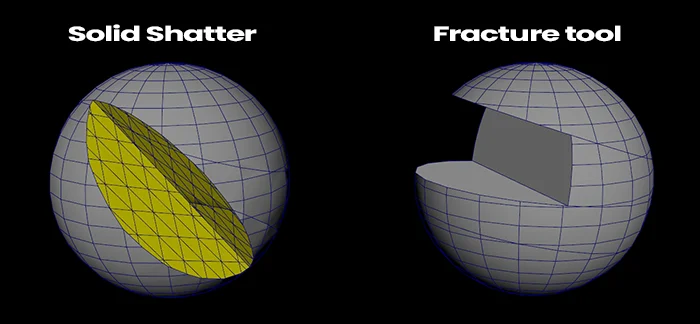
Keeping polycount low is crucial, especially for game engines. Solid Shatter tends to add unnecessary polygons to the inner faces.
The Maya fracture tool adds minimal extra geometry, keeping polycount as low as possible.
UV Preservation (Outer Faces):
Solid Shatter does a decent job preserving outer UVs, but it’s not perfect. After fracturing, you may need to manually fix some distortions.
The Maya fracture tool preserves outer UVs accurately, eliminating the need for cleanup.
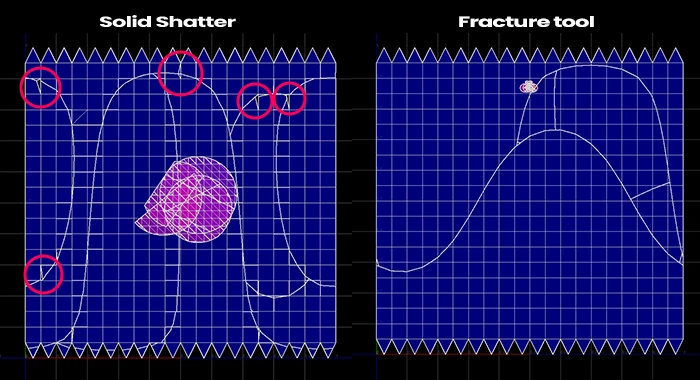
Note: For both tools, inner UVs still require manual adjustment. However, selecting inner faces is much easier with the Maya fracture tool, as described earlier.
Preserve Original Normals:
This feature is missing from Solid Shatter, requiring manual fixes after fracturing.
The Maya fracture tool includes an option to preserve original normals, reducing post-processing work.
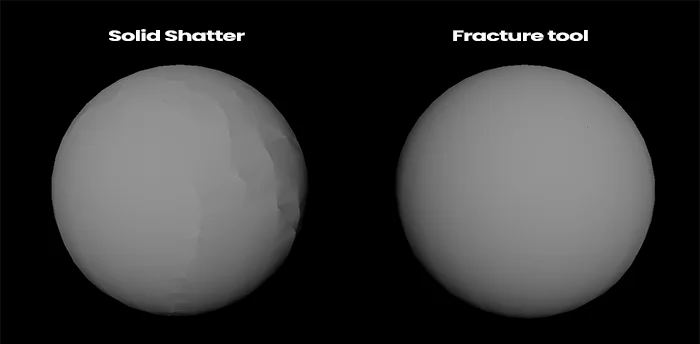
Note: This applies only to outer faces and can be toggled on/off.
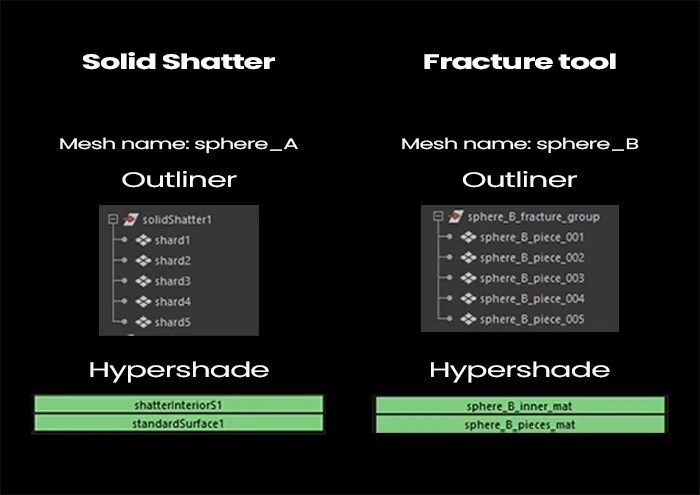
Name Convention:
Naming conventions are critical in production environments. Proper naming of objects and materials can save significant time.
The Maya Fracture Tool provides a more robust and production-friendly naming system compared to Solid Shatter.
Conclusion:
Both tools have their place in a 3D workflow.
However, the Fracture Tool clearly stands out in production-oriented environments. Its ability to handle re-fracturing seamlessly, support multi-material objects, preserve UVs and normals, and maintain cleaner geometry makes it a far more efficient and scalable solution. The additional control over materials, and inner face selection significantly reduces the need for manual cleanup, saving both time and effort.
If your work involves complex assets, iterative destruction workflows, or game-ready optimization, the fracture tool offers a more robust and artist-friendly approach. Solid shatter is a good starting point, but for advanced control and professional pipelines, the fracture tool becomes the better long-term choice.
If you’d like to learn more about how the tool actually works, check out my detailed breakdown in this article: Maya Fracture Tool: BSP-Based Voronoi Fracturing.



One Response