Batch resize images when doing it manually is extremely tedious process. You can simplify the whole process with command line on Windows.
If you have Adobe products on your PC, such as Adobe Bridge or Adobe Photoshop, the resize process is pretty straightforward. Feel free to take a look at those two previous articles about that matter:
- Export multiple images in Photoshop (batch export – image processor)
- Batch Resize Images in Photoshop (Image Processor)
But, If you don’t have Adobe products, the resize process can be a nightmare, and extremely time consuming, depending of the number of images you want to resize.
If you are a 3D Artist, trying to resize your texture maps, a Photographer trying to resize your pictures, or you belong in any other creative industry, you will definetly benefit from this python script.
You can run this script from command line on Windows, and it will automatically resize all of your images on a specific folder of your choise. You can also adjust the quality of your new resized images.
Before you Run the Script (Batch Resize Images):
Two things before you run the script:
First: In order to run the script you need Python. So open the command line and type python. After than, command line will prompt you to install Python. Complete the process.
Second: You also need Pillow (PIL fork) library. In the command line type:
python m- pip install Pillow
That’s it, now you can run the script.
Note: If you already have Python and PIL fork, you can skip both steps and run the script, without any issue.
How the Script Works:
Move the python script into the folder that your images lives (important).
You only have to change a few parameters on the script before you run it through command line:
- input folder: the path of your folder which contain all your images you want to resize
- output folder: where to save your new resized images
- target size: your new resize resolution
- quality: the quality of your new resized images (100 is max)
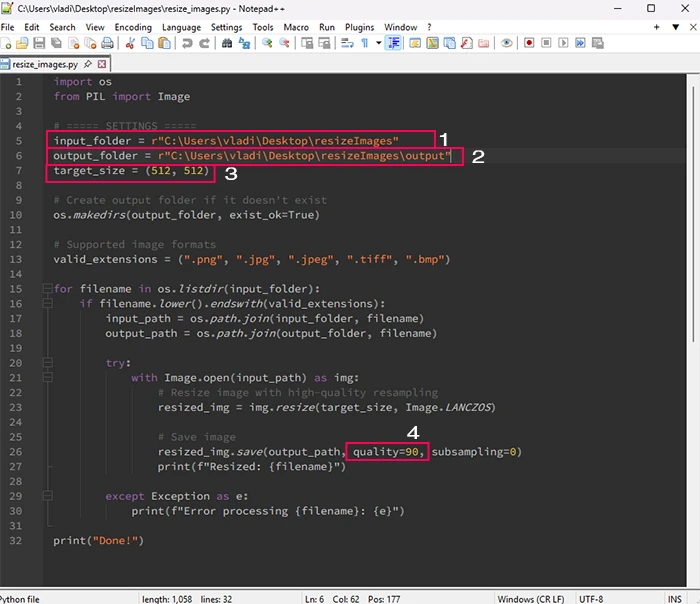
After you change the script to reflect your resize needs, open the command line on Windows.
Type “cd” and the actual folder path of your images. Example:
cd “C:\Users\Vladi\Desktop\resizeImages”
Now you would see something like C:\Users\vladi\Desktop\resizeImages> in the command line. This means you are inside that folder. So now you can run the script.
To run the script, type:
python resize_images.py
After that Windows will resize all your images and put them on the chosen folder.
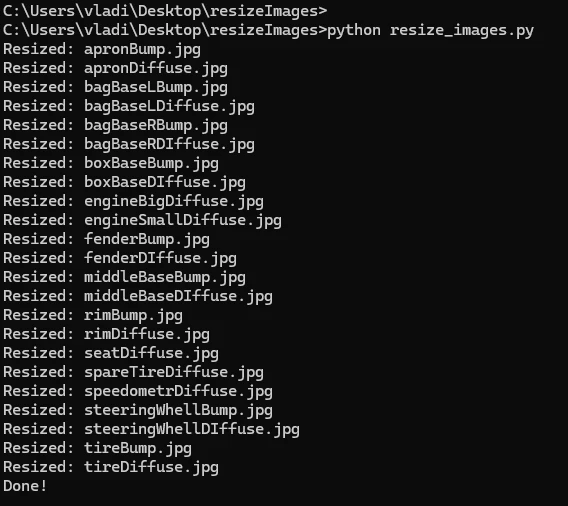
Note: “Python” is the command, and “resize_images.py” is the name of the python script. If you change the name of the script, you need to change the command as well.